ManualFitOfActiveDataset
Fitting peaks in a sub-pattern: starting up
In order to fit peaks within a sub-pattern, select the image you want to work on in the Active datasets panel of the main Multifit window and open the menu item Image fit > fit active dataset (manual). You'll see the following dialog
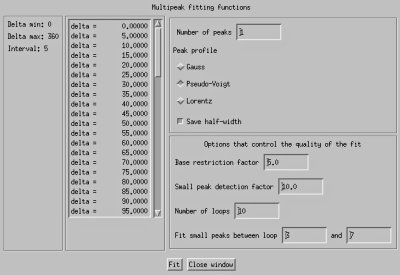
Manual fit dialog
You can choose
- the azimuth values where you have data (just select them)
- the number of peaks in your subpattern
- the peak profile
- whether to save half-withs or not (unless you really do not want them, save them, or you'll have problems later on)
The second panels includes things to trick multifit for a better results. In theory, you should not have to play with those. Parameters include things such as
- base restriction factor: limits the range of 2 theta considered around a peak, reduce or increase this value if you have problems with overlapping peaks.
- small peak detection factor: peaks that are XXX times less intense than the most intense peak are considered "small"
- number of loops,
- loops in which to fit small peaks.
Fitting peaks in a sub-pattern: fit
At the beginning, you'll be asked to
- click on the left and right side of your sub-pattern,
- click on the left and right side of your sub-pattern (again, this is useful if they are very small),
- click on top, and half-width of each peak you are interrested in,
Multifit will then optimized the parameters and come up with a suggestion.
- curve in black is the data,
- blue is the fitted diffractogram,
- yellow are the fitted individual peaks,
- residuals are plotted below.
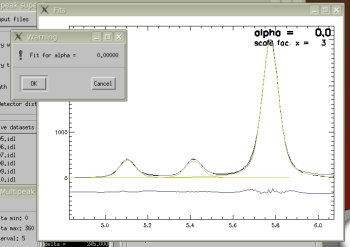
Multifit asking for a confirmation
You will be asked to confirm,
- if you do not agree, you'll have to do the previous step again,
- if you agree, Multifit will propagate the fit to the other azimuth angles.
If no problem occurs, Multifit will propagate the fit to all others azimuth angles. If something wrong occurs (peaks changing width too fast, peaks with negative intensity...), multifit will stop and offer three choices
- ignore this azimuth and keep going,
- re-try this azimuth by hand (as you did at the beginning),
- stop everything here (if you want to change your fit options, for instance).
Saving results
At then end, Multfit will plot 2theta, intensities, and half-width values it found vs. azimuth angles.
Saving the data is possible. I recommend a .dat extension, with the following name scheme:
- D0607_005_1.dat
- D0607_005_2.dat
- D0607_005_3.dat
- ...
where D0607_005 is the datafile and 1, 2, 3 are sub-patterns numbers.
You'll be asked for a title, I usually give the indices of the peaks so I can remember.
This file is in pure text format and looks like this
# My title
# delta, then 2 theta, d, intensity, and
# half-width (and maybe relative weight gauss/lorentz) for each peak
    0.00   7.4563   1.4666  169.37     0.14
    5.00   7.4564   1.4666  179.30     0.14
   10.00   7.4532   1.4672  265.96     0.11
   15.00   7.4534   1.4672  158.27     0.14
   20.00   7.4545   1.4670   52.47     0.14
   25.00   7.4525   1.4674  131.18     0.14
   30.00   7.4515   1.4675  110.29     0.14
   35.00   7.4494   1.4680   98.61     0.15
   40.00   7.4470   1.4684   81.55     0.15
   45.00   7.4435   1.4691   79.46     0.14
   50.00   7.4468   1.4685   80.43     0.14
   55.00   7.4429   1.4692   67.29     0.14
   60.00   7.4416   1.4695   74.24     0.15
   65.00   7.4420   1.4694   98.11     0.12
   70.00   7.4436   1.4691   83.35     0.13
   75.00   7.4404   1.4697  110.83     0.14
   80.00   7.4388   1.4700  111.72     0.13
...